A laptop can begin showing small warning signs long before it stops working completely. It may take longer to start, become unusually hot, lose battery power quickly or disconnect from the charger whenever the cable moves.
Some problems can be caused by simple software settings, full storage or a faulty accessory. Other faults involve the screen, charging port, battery, cooling system or internal components and should be inspected by a technician.
Ignoring early warning signs may allow a manageable fault to become more serious. It can also increase the risk of losing important files if the laptop eventually stops turning on.
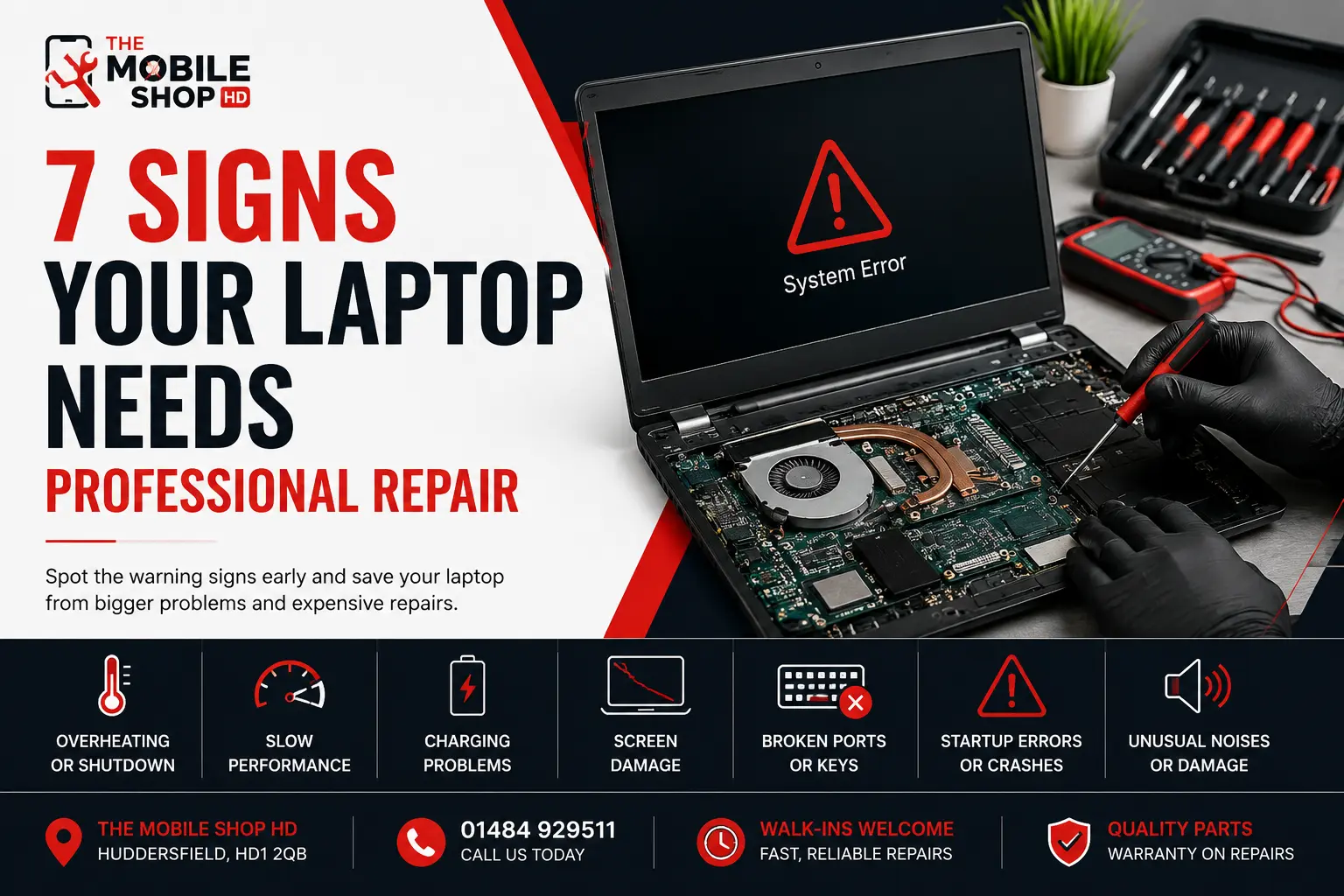
Quick answer: Your laptop may need professional repair if it repeatedly overheats, runs extremely slowly, will not charge properly, displays screen faults, has broken ports or keys, shows persistent startup errors, or makes unusual noises. Back up your files and arrange an inspection before the fault becomes worse.
Here are seven common signs that your laptop may need professional attention.
1. Your Laptop Is Overheating or Switching Off
It is normal for a laptop to become slightly warm during gaming, video editing, software updates or other demanding tasks. It is not normal for it to become painfully hot, shut down repeatedly or display temperature warnings during ordinary use.
Possible signs of overheating include:
- The base becomes extremely hot
- The fan runs loudly all the time
- The laptop switches off without warning
- Performance becomes slower after a few minutes
- The keyboard or palm rest feels unusually warm
- The laptop restarts during demanding tasks
- A temperature warning appears
Overheating may be caused by:
- Dust blocking the cooling vents
- A failing fan
- Dried or poorly applied thermal compound
- Blocked internal airflow
- Heavy background software
- Battery problems
- Internal component faults
Safe checks to try
Place the laptop on a hard, flat surface rather than a bed, sofa or blanket. Soft surfaces can block the ventilation openings.
You can also:
- Shut down unnecessary applications.
- Check whether the vents are blocked externally.
- Restart the laptop.
- Install trusted system updates.
- Check whether the problem only occurs with one program.
Do not open the laptop or push objects through the ventilation openings unless you have suitable experience.
Compressed air used incorrectly can push dust deeper inside or cause the fan to spin at unsafe speeds.
When professional repair is recommended
Arrange an inspection if the laptop continues to overheat, shuts down regularly or makes grinding noises from the cooling area.
A technician may need to inspect the fan, clean the cooling system and test the battery and internal components.
2. The Laptop Has Become Extremely Slow
Laptops usually become slower gradually, but a sudden or severe performance drop can indicate a problem.
Warning signs include:
- The laptop takes several minutes to start
- Programs freeze regularly
- The cursor stops responding
- Files take a long time to open
- The laptop becomes slow with only one or two apps open
- The system frequently shows “not responding” messages
- The device crashes during normal tasks
A slow laptop may be caused by:
- Limited storage space
- Too many startup programs
- Malware or unwanted software
- An ageing hard drive
- Insufficient memory
- Overheating
- Corrupted system files
- A failing storage device
Safe checks to try
Before arranging a repair, check:
- Available storage space
- Programs running at startup
- Pending operating-system updates
- Recently installed apps
- Whether the laptop is slow only when connected to the internet
- Whether the problem started after a particular update
You can remove unused apps and move large personal files to a safe backup location.
Avoid downloading unknown “PC cleaner” or “speed booster” software. These tools may not solve the underlying problem and can sometimes install unwanted programs.
When professional repair is recommended
Professional inspection is sensible when the laptop remains slow after basic maintenance or when it freezes, crashes or fails to open important files.
A technician may test the storage drive, memory, cooling system and operating system to identify the actual cause.
3. The Laptop Will Not Charge Properly
Charging faults are among the most common laptop problems.
The issue may involve the charger, cable, charging socket, battery or internal power circuitry.
Common symptoms include:
- The battery percentage does not increase
- The laptop works only while plugged in
- Charging stops when the cable moves
- The charger feels loose inside the port
- The battery symbol disappears and reappears
- A “plugged in, not charging” message appears
- The laptop will not switch on even when connected
- The charging connector becomes extremely hot
Safe checks to try
Start with the charger and power source:
- Try another wall socket.
- Inspect the charger cable for cuts, bends or exposed wires.
- Make sure each connector is fitted securely.
- Remove docks, adapters or extension cables temporarily.
- Restart the laptop.
- Use another compatible charger only when its voltage and specifications are correct.
Do not force a damaged or loose charging plug into the laptop.
Using the wrong charger can damage the battery or internal charging components.
Signs the charging port may be damaged
The charging socket may require repair if:
- The connector moves excessively
- Charging works only at a certain angle
- The socket appears pushed inside
- The laptop was dropped while connected to the charger
- The connector or port shows burn marks
- The area produces a burning smell
Stop using the device if the charger or port becomes unusually hot.
When professional repair is recommended
A technician should inspect the laptop if a known working charger does not solve the problem or if the charging port is physically loose or damaged.
The fault may require battery replacement, charging-port repair or internal power diagnosis.
4. The Screen Is Flickering, Cracked or Showing Lines
Laptop display problems can make the device difficult or unsafe to use.
Common screen faults include:
- Cracks
- Flickering
- Vertical or horizontal lines
- Black patches
- Discoloured areas
- A completely black screen
- A dim display
- The image changing when the lid moves
- The screen separating from the casing
A laptop may still be running even when the display appears black. You may hear fans, notifications or startup sounds.
The problem could involve:
- The display panel
- Internal display cable
- Hinge damage
- Backlight
- Graphics hardware
- Screen connector
- Impact damage
Safe checks to try
You can:
- Restart the laptop.
- Adjust the brightness.
- Disconnect external devices.
- Connect an external monitor, where possible.
- Check whether the image changes when the lid is moved carefully.
- Update the graphics software if the screen remains usable.
Do not repeatedly bend the lid or press the damaged area.
A damaged hinge can pull on the screen cable or casing and create additional damage.
When professional repair is recommended
Arrange screen repair if there are cracks, spreading black areas, persistent flickering or lines that remain after restarting.
Professional inspection is also recommended when the screen casing, bezel or hinges are separating.
5. The Keyboard, Touchpad or Ports Are Failing
A laptop may remain usable with one faulty key or port, but these problems can gradually become more disruptive.
Warning signs include:
- Several keyboard keys do not respond
- Keys type the wrong characters
- The touchpad moves unpredictably
- The touchpad no longer clicks
- USB devices disconnect repeatedly
- Headphones are not detected
- The HDMI port no longer works
- The charging cable feels loose
- Memory cards are not recognised
These faults may be caused by:
- Dirt or debris
- Liquid exposure
- Worn components
- Damaged internal cables
- Broken solder connections
- Software or driver problems
- Physical damage
Safe checks to try
Before assuming a hardware failure:
- Restart the laptop
- Test another USB device
- Test another cable
- Check keyboard language settings
- Update the relevant system drivers
- Disconnect unnecessary accessories
- Clean only the external surface with the laptop switched off
Do not pour cleaning liquid directly onto the keyboard.
Avoid removing keys unless you understand the specific keyboard design, as the small clips underneath can break easily.
When professional repair is recommended
Repair may be needed when multiple keys stop working, the touchpad becomes unreliable, a port is physically damaged or the problem began after liquid exposure.
A technician may need to replace the keyboard, touchpad, port or internal connecting cable.
6. The Laptop Shows Startup Errors or Keeps Crashing
Occasional software errors can happen, but repeated startup failures or system crashes may indicate a deeper issue.
Common warning signs include:
- The laptop remains stuck on the manufacturer logo
- Windows will not load
- A blue screen appears repeatedly
- The device enters a restart loop
- Automatic repair fails
- The laptop says no boot device was found
- Important files suddenly become unreadable
- The system crashes during basic tasks
Possible causes include:
- Corrupted operating-system files
- Failed updates
- Malware
- Storage-drive failure
- Memory faults
- Overheating
- Internal component problems
Safe checks to try
If the laptop still starts occasionally:
- Back up important files immediately.
- Record any error codes.
- Uninstall recently added software.
- Disconnect external drives and accessories.
- Check for system updates.
- Run the built-in diagnostic tools supplied by the manufacturer.
Do not repeatedly force the laptop to start when the storage drive is making unusual noises.
Continuing to use a failing drive may reduce the chance of recovering important data.
When professional repair is recommended
Professional diagnosis is recommended when the laptop repeatedly crashes, will not load the operating system or shows storage-related error messages.
The technician may test the hard drive or SSD, memory and system files before recommending repair or replacement options.
7. You Hear Unusual Noises or Notice Physical Damage
Laptops should not produce grinding, clicking, buzzing or scraping sounds.
Unusual noises may come from:
- The cooling fan
- A mechanical hard drive
- Loose internal parts
- Damaged speakers
- Electrical components
Physical damage can include:
- Broken hinges
- Cracked casing
- Loose screen frame
- Bent charging port
- Missing keys
- Swollen battery
- Liquid damage
- Burn marks
A clicking hard drive
A repeating clicking or grinding sound from a laptop with a mechanical hard drive can indicate that the drive is failing.
Stop unnecessary use and back up important files if it is still safe to do so.
A grinding fan
A worn or obstructed fan may produce scraping or grinding sounds.
Continuing to use the laptop while the cooling system is failing can lead to overheating.
A swollen battery
A swollen laptop battery is a safety concern.
Possible signs include:
- The touchpad is lifting
- The keyboard is bulging
- The base is separating
- The laptop no longer sits flat
- The casing is opening
- The device becomes unusually hot
Do not press the casing back together or continue charging the laptop.
Switch it off if this can be done safely and arrange professional assistance.
What to Do Before Taking Your Laptop for Repair
If the laptop is still working, prepare it before visiting a repair shop.
Back Up Important Files
Create a copy of:
- Documents
- Photographs
- Videos
- Business files
- Browser bookmarks
- Email archives
- Login information
- University or school work
Use an external drive or a trusted cloud service.
Confirm that the backup opens correctly before relying on it.
Record the Symptoms
Write down:
- When the problem started
- Any error messages
- Whether the laptop was dropped
- Whether liquid was spilled
- Whether it has been repaired before
- Which charger you use
- What troubleshooting you have already tried
This information can help the technician diagnose the fault.
Bring the Charger
For power or charging problems, bring the laptop charger with you. The charger may be part of the fault and may need testing.
Remove Unnecessary Accessories
Remove:
- USB drives
- Memory cards
- Wireless receivers
- Dongles
- External hard drives
Keep a record of anything left with the repair shop.
Laptop Repairs You Should Avoid Attempting at Home
Online tutorials can make laptop repair look easier than it is.
Modern laptops often contain fragile connectors, tightly fitted components and batteries that can be damaged if handled incorrectly.
Avoid attempting to:
- Open a swollen battery
- Replace a screen without suitable tools
- Repair a charging socket with glue
- Heat the motherboard in an oven
- Bypass damaged power components
- Pour liquid cleaner into a keyboard
- Force open a cracked casing
- Remove internal components while the battery is connected
DIY mistakes can damage the motherboard, screen cables, battery or storage device.
Professional inspection is usually safer when the laptop contains important data or has physical, electrical or liquid damage.
Repair or Replace: Which Option Is Better?
Not every faulty laptop needs replacing.
Repair may be worthwhile when:
- The laptop meets your everyday needs
- The fault involves the battery, screen, keyboard or charging port
- The device has important software or files
- Replacement would cost significantly more
- The rest of the laptop is in good condition
Replacement may be considered when:
- Several expensive components have failed
- The laptop is no longer compatible with required software
- The casing and motherboard are both badly damaged
- Repair would cost close to the price of a suitable replacement
- Performance no longer meets your needs
A professional diagnosis can help you make a more informed decision before spending money on a new laptop.
Need Laptop Repair in Huddersfield?
The Mobile Shop HD provides laptop and computer repair support in Huddersfield.
The team can inspect common problems including:
- Overheating
- Slow performance
- Screen faults
- Charging problems
- Battery issues
- Keyboard faults
- Damaged ports
- Startup errors
- Laptop hardware problems
Website: https://mobileshophd.com/
Telephone: 01484 929511
Location: Huddersfield, HD1 2QB
When contacting the shop, provide the laptop brand, model, fault symptoms and details of any drop or liquid exposure.
Frequently Asked Questions
Persistent overheating, charging problems, screen faults, crashes, broken ports, unusual noises and physical damage are strong signs that professional inspection may be required.
A slow laptop may have low storage, too many startup programs, malware, overheating, insufficient memory or a failing storage drive.
It depends on the condition, age, fault and repair cost. Battery, charging-port, keyboard and screen repairs may still be worthwhile when the laptop otherwise meets your needs.
Yes, depending on the cause. The cooling system may need cleaning, fan replacement, thermal maintenance or further hardware diagnosis.
The charging cable, connector or laptop charging port may be worn or damaged. Avoid forcing the cable and arrange an inspection.
Many cracked laptop screens can be replaced. The exact repair depends on the laptop model, display type and whether the hinges or casing are also damaged.
Not automatically. First back up your files. A reset may not solve a hardware problem and can remove important data.
No. Stop using and charging it. A swollen battery can damage the casing and may create a safety risk.
It may be possible, depending on the condition of the storage drive and the cause of the fault. Data recovery cannot be guaranteed.