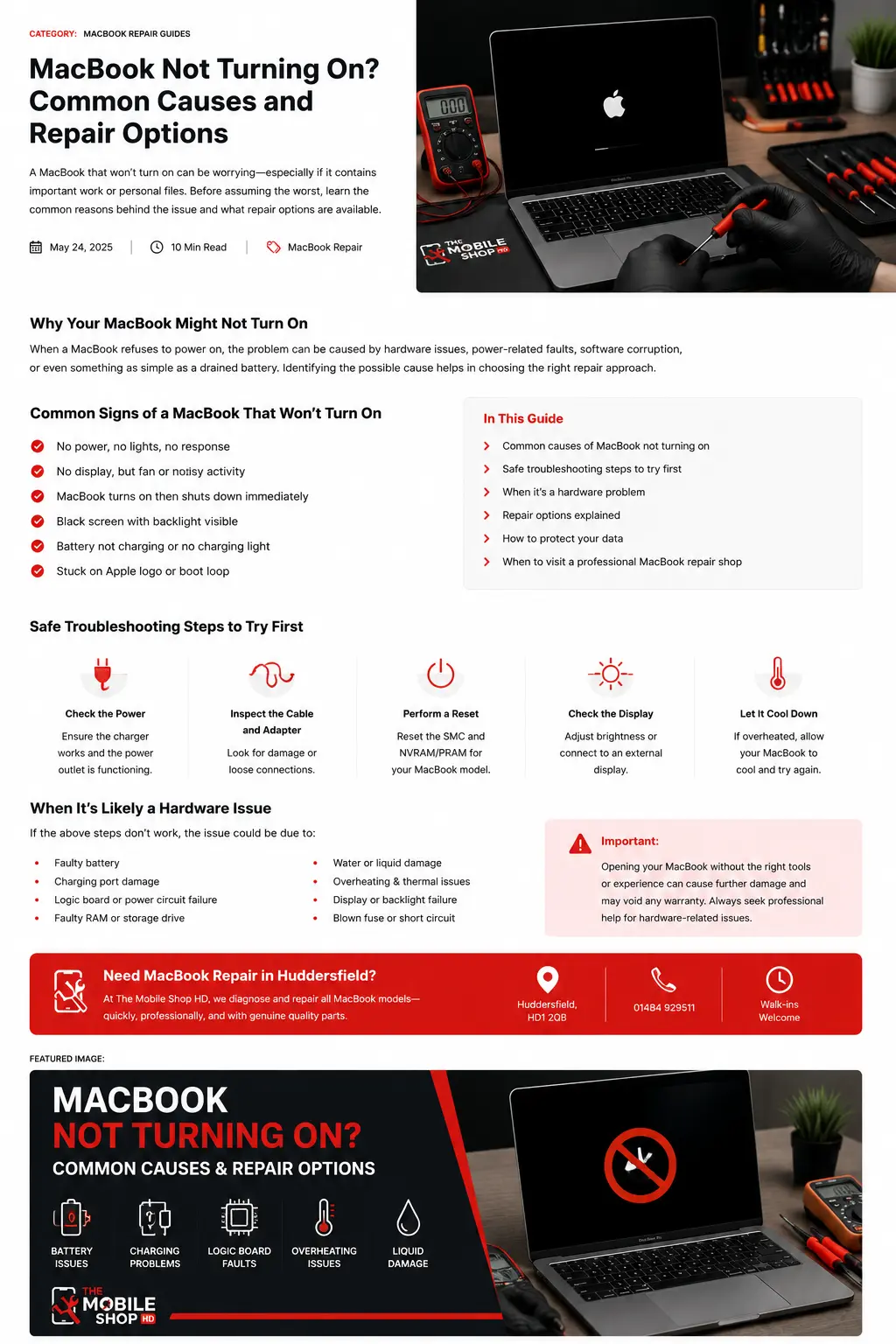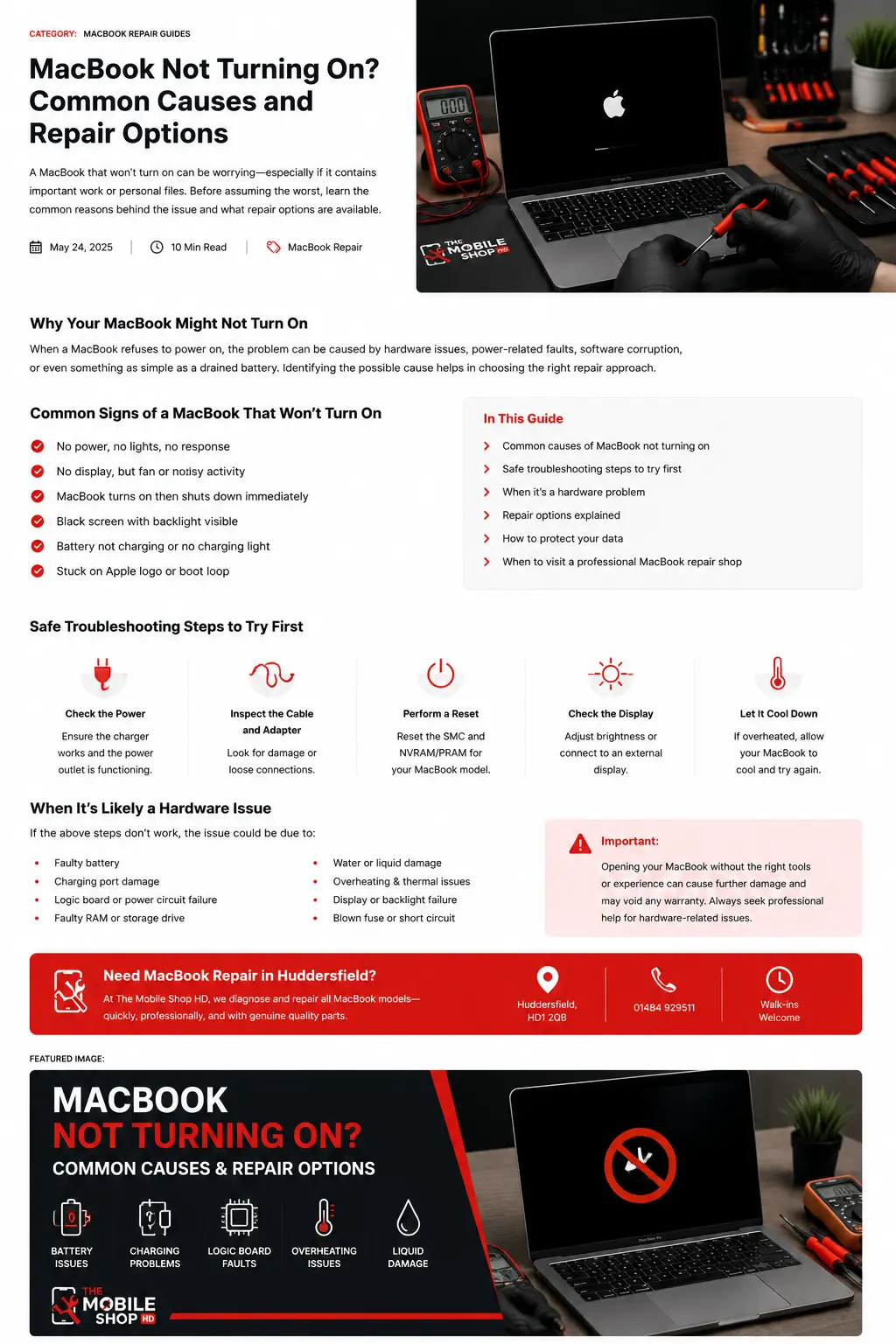
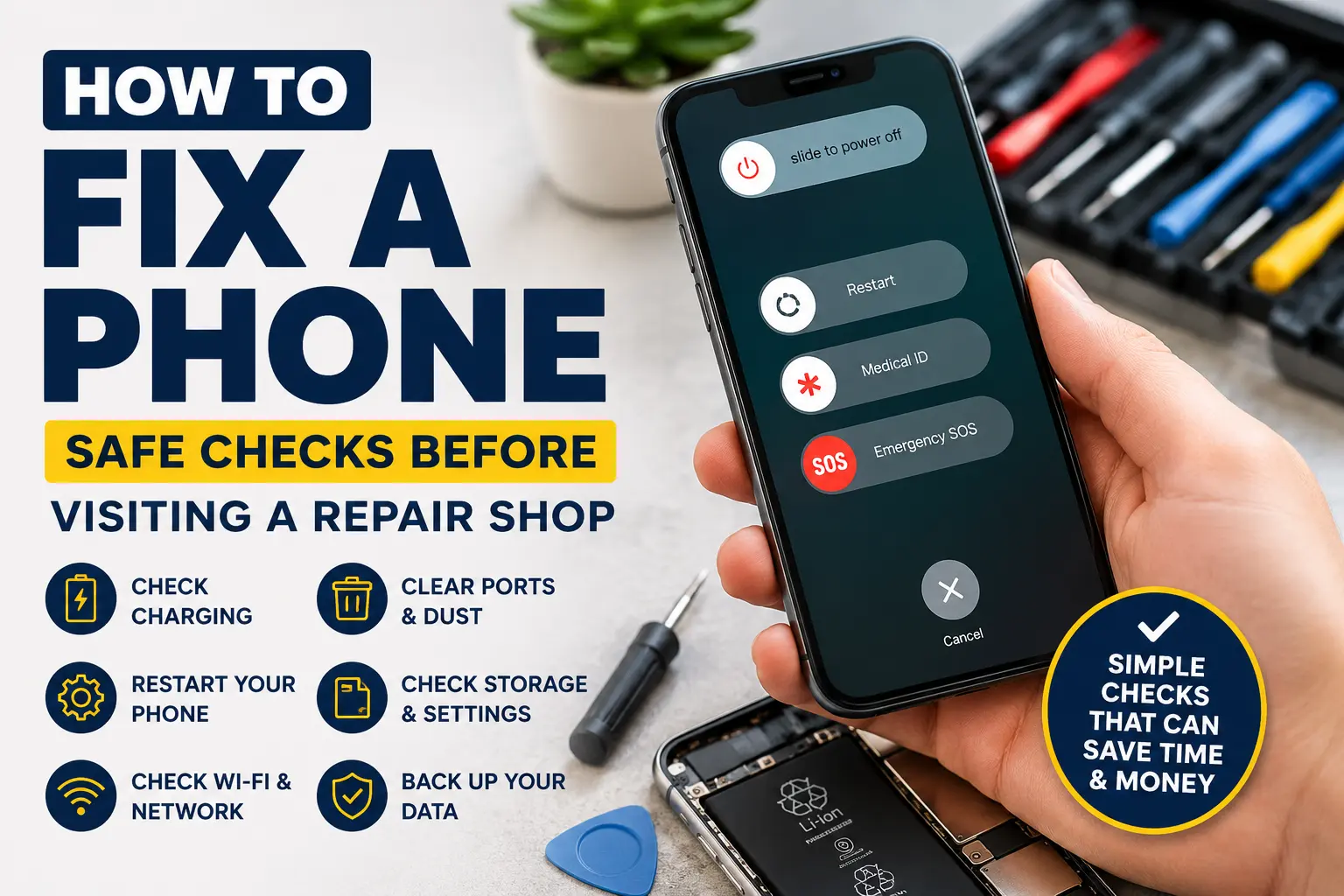
When your phone suddenly stops charging, freezes, loses sound or refuses to switch on, it is easy to assume that the device is permanently damaged. In some cases, however, the problem may be caused by a faulty cable, blocked charging port, software crash, full storage or an incorrect setting.
There are several safe checks you can try at home before visiting a phone repair shop. The important word is safe. Modern smartphones contain delicate batteries, screens and internal components. Opening the phone, applying heat or forcing objects into the charging port can turn a small fault into a more expensive repair.
This guide explains how to troubleshoot common iPhone and Android problems without risking further damage.
Quick answer: Restart the phone, check the charger and power socket, inspect the charging port carefully, remove the case, check storage and software settings, and back up your data if the phone remains usable. Stop immediately if the phone is swollen, overheating, badly cracked or liquid-damaged.
Before Trying to Fix Your Phone
Start by identifying what the phone is actually doing.
Ask yourself:
- Does the phone switch on?
- Does it show a charging symbol?
- Is the screen black but the phone still vibrates or rings?
- Does the touchscreen respond?
- Is the phone unusually hot?
- Was it recently dropped?
- Has it been exposed to water?
- Is the battery draining faster than normal?
- Did the problem begin after an update or new app?
- Does the issue happen all the time or only occasionally?
These details can help you decide whether the problem is related to the battery, display, charging port, software or another component.
They are also useful when explaining the fault to a repair technician.
1. Restart the Phone
Restarting is one of the safest and most effective first checks for a phone that is slow, frozen or behaving strangely.
A restart can clear temporary software errors affecting:
- Apps
- Mobile data
- Wi-Fi
- Bluetooth
- Camera access
- Sound
- Touchscreen response
- General performance
Use the normal power menu where possible.
If the phone is completely frozen, you may need to perform a force restart. The exact button combination depends on the model, so check the manufacturer’s instructions for your specific phone.
A force restart should not normally erase your data, but avoid repeatedly pressing random button combinations.
2. Check the Charger, Cable and Socket
A phone that will not charge may not have a fault inside the device. The problem could be the cable, plug, socket or wireless charger.
Try these checks:
- Connect the charger firmly.
- Try another wall socket.
- Inspect the cable for bends, exposed wires or loose connectors.
- Test a different compatible cable.
- Test a different compatible charging plug.
- Leave the phone connected for at least 20 to 30 minutes if the battery is completely empty.
- Remove a thick case when using wireless charging.
Avoid using damaged, extremely cheap or unsuitable charging accessories. Poor-quality cables can cause unstable charging, excess heat or repeated disconnections.
If another charger works normally, the phone itself may not require repair.
3. Inspect the Charging Port Carefully
Dust and pocket lint can collect inside the charging port. This may prevent the cable from sitting correctly.
Signs of a blocked or damaged charging port include:
- The cable feels loose
- Charging stops when the cable moves
- The connector does not go in fully
- The phone charges only at a certain angle
- The phone does not recognise the charger
Switch the phone off before inspecting the port. Use a light to look inside.
Do not use:
- Metal pins
- Needles
- Screwdrivers
- Liquid cleaners
- Excessive force
- Compressed air at close range
These can damage the internal charging contacts.
If debris is deeply packed or the port looks bent, corroded or loose, a repair shop should inspect it safely.
4. Remove the Phone Case and Accessories
A poorly fitted case or screen protector can sometimes interfere with the phone.
Remove the case temporarily and check whether it is:
- Pressing the power or volume buttons
- Blocking the charging cable
- Covering a microphone or speaker
- Trapping heat
- Lifting the screen protector
- Affecting wireless charging
Also disconnect headphones, USB accessories and memory card adapters before testing the phone again.
5. Check Whether the Screen or Phone Is the Real Problem
A black screen does not always mean that the phone is completely dead.
Call the phone from another number. Check whether it:
- Rings
- Vibrates
- Makes notification sounds
- Connects to a charger
- Appears on a computer
- Responds to the power button
If the phone rings but the screen remains black, the device may have a display or backlight problem rather than a battery fault.
If the display is cracked, flickering, showing lines or developing dark patches, avoid pressing hard on the damaged area. Continued pressure may make the screen damage worse.
6. Free Up Storage Space
A phone with very little available storage may become slow, freeze, fail to update or prevent apps from working correctly.
Check the storage section in the phone settings.
You can safely create space by reviewing:
- Large videos
- Duplicate photographs
- Downloaded files
- Unused apps
- Offline music
- Old podcast episodes
- App cache, where appropriate
- Deleted items folders
Back up important files before deleting them.
Avoid installing “cleaner” apps from unknown companies. Some promise to speed up the phone but may display aggressive advertisements, request unnecessary permissions or provide little benefit.
7. Update Apps and Phone Software
Software updates can correct bugs, improve compatibility and resolve app crashes.
Before updating:
- Connect to a stable Wi-Fi network
- Make sure the battery is sufficiently charged
- Create a recent backup
- Check that enough storage is available
Update frequently used apps first. If the problem affects the entire phone, check for a system update.
Do not start a major software update when the phone is overheating, repeatedly switching off or unable to charge reliably. A technician should inspect serious power problems first.
8. Check Recently Installed Apps
If the problem started after installing a new app, the app may be causing conflicts, battery drain or repeated crashes.
Try:
- Closing the app.
- Restarting the phone.
- Updating the app.
- Checking the app permissions.
- Removing the app temporarily.
Android users may also be able to test the phone in Safe Mode. This temporarily disables downloaded apps and can help identify whether a third-party app is causing the problem.
The method for entering Safe Mode varies between Android manufacturers, so use the correct instructions for your model.
9. Check Wi-Fi and Mobile Data Problems
If websites, apps or messages are not loading, the phone itself may not be damaged.
Try these checks:
- Turn Airplane Mode on and off
- Restart the phone
- Restart the Wi-Fi router
- Forget and reconnect to the Wi-Fi network
- Check whether other devices have internet access
- Confirm that mobile data is enabled
- Check whether your network provider has an outage
- Remove and reinsert the SIM only if it is safe and accessible
Do not reset all network settings immediately. This may remove saved Wi-Fi networks, Bluetooth connections and other network preferences.
Try simpler checks first.
10. Check Sound, Speaker and Microphone Problems
If the phone has no sound, confirm that it is not a settings issue.
Check:
- Volume level
- Silent mode
- Do Not Disturb or Focus mode
- Bluetooth connections
- Headphone mode
- App-specific sound settings
- Speaker and microphone openings
Disconnect Bluetooth devices because audio may be playing through headphones, a car system or another speaker.
Carefully inspect the speaker openings for dirt, but do not push sharp objects inside.
Record a short voice memo or video to test the microphone. Play music or a ringtone to test the speaker.
If calls sound distorted after water exposure or a drop, the speaker or microphone may require professional inspection.
11. Check Battery Drain and Overheating
Rapid battery drain does not always mean that the battery must be replaced.
First check:
- Screen brightness
- Background app activity
- Location services
- Mobile signal strength
- Recently installed apps
- Battery usage statistics
- Hot environments
- Navigation or gaming apps
A phone may become warm during gaming, video recording, navigation, fast charging or software updates.
However, stop using the phone if it becomes extremely hot, displays a temperature warning or smells unusual.
Do not place an overheating phone in a freezer or refrigerator. Sudden temperature changes can create condensation and cause further damage.
Allow it to cool naturally in a dry, shaded area.
12. What to Do If the Phone Will Not Turn On
A phone that does not switch on may have a flat battery, damaged screen, charging fault, software crash or internal hardware problem.
Try these safe steps:
- Inspect the charger and cable.
- Connect the phone to a reliable charger.
- Leave it charging for at least 30 minutes.
- Check for vibration, sound or charging symbols.
- Try the correct force-restart method.
- Connect it to a trusted computer, where appropriate.
Stop if the phone becomes hot while charging.
If the phone still shows no response, avoid opening it or repeatedly forcing the charging cable. A technician may need to test the battery, screen, charging port or internal power components.
13. What to Do After Water or Liquid Damage
Liquid damage requires different treatment from ordinary software problems.
If the phone gets wet:
- Disconnect the charger immediately.
- Switch the phone off if it is safe to do so.
- Remove the case.
- Wipe the outside with a soft, dry cloth.
- Keep the phone in a dry and ventilated place.
- Arrange a professional inspection as soon as possible.
Do not:
- Charge the phone
- Use a hairdryer
- Place it on a radiator
- Shake it aggressively
- Press the buttons repeatedly
- Put it in an oven
- Bury it in rice
Rice does not remove internal corrosion and small particles may enter the charging port.
A phone may appear to work after getting wet while corrosion continues inside. Early inspection can improve the chance of preventing further damage.
14. Stop Using a Phone With a Swollen Battery
A swollen battery is a safety issue and should not be treated as a normal performance problem.
Possible warning signs include:
- The screen is lifting from the frame
- The back cover is separating
- The phone rocks on a flat surface
- The case no longer fits
- The device becomes unusually hot
- A chemical or sweet smell is present
Do not press the screen back into place, puncture the battery or continue charging the phone.
Switch it off if you can do so safely. Keep it away from heat and flammable materials, and arrange professional assistance.
15. Back Up Your Data Before a Repair
If the phone still works, create a backup before handing it over for inspection.
Back up:
- Photographs and videos
- Contacts
- Messages
- Notes
- Documents
- WhatsApp chats
- App data
- Authentication codes, where possible
Use iCloud, Google backup or a trusted computer, depending on your phone.
Check the date of the latest successful backup rather than assuming automatic backup is working.
You should also record:
- Your device model
- The fault symptoms
- When the issue started
- Whether the phone was dropped or exposed to liquid
- Any error messages
- Repairs previously completed
This information can help the technician diagnose the fault more efficiently.
Repairs You Should Not Attempt at Home
Modern phones are tightly assembled and often require specialist tools, adhesives and testing equipment.
Avoid trying to:
- Open the phone with knives or screwdrivers
- Replace a swollen battery
- Heat the screen with household appliances
- Glue a lifted screen back down
- Solder internal components
- Clean liquid damage with unapproved chemicals
- Replace waterproof seals without proper tools
- Force a broken charger out of the port
- Use online “miracle fixes” involving heat or freezing
A failed DIY repair may damage the screen, battery, motherboard, cameras, fingerprint sensor or Face ID components.
When Should You Visit a Phone Repair Shop?
Professional inspection is recommended when:
- The screen is badly cracked
- The phone does not switch on
- The charging port is loose or damaged
- The battery is swollen
- The phone overheats repeatedly
- The device has liquid damage
- The camera shakes or will not focus
- The phone has no sound after a drop
- The screen shows lines, black patches or flickering
- The phone restarts continuously
- Buttons are stuck or missing
- The device cannot connect to a charger
- Important data is trapped on the phone
Stop using the device if continuing could cause further damage or create a battery safety risk.
What to Tell the Repair Technician
A clear explanation helps the repair shop understand the problem.
Tell them:
- The phone make and model
- The main fault
- When the problem started
- Whether it was dropped
- Whether it was exposed to liquid
- What troubleshooting you already tried
- Whether it has been repaired before
- Whether your data is backed up
- Whether the phone still charges, rings or vibrates
Avoid hiding liquid damage or previous repairs. These details can affect diagnosis and repair options.
Need Phone Repair in Huddersfield?
The Mobile Shop HD provides repair support for smartphones and other devices in Huddersfield.
The team can inspect common problems including damaged screens, charging faults, battery issues and phones that are not working correctly.
Website: https://mobileshophd.com/
Telephone: 01484 929511
Location: Huddersfield, HD1 2QB
Before visiting, explain the phone model, fault symptoms and whether the device has been dropped or exposed to liquid.
Frequently Asked Questions
Start with safe checks such as restarting the phone, testing another charger, checking storage, removing the case and updating apps. Do not open the phone or attempt battery and screen repairs without suitable training and tools.
The cause may be a completely empty battery, faulty charger, damaged charging port, failed screen, software crash or internal hardware issue. Charge it with a tested charger and try the correct force-restart method.
Test another cable, charging plug and wall socket. Inspect the charging port carefully for debris. If the cable remains loose or charging cuts in and out, the port may require professional repair.
A screen protector may temporarily cover small cracks, but it does not repair the display. Replacing a phone screen requires correct parts, tools and adhesives. Professional repair is usually safer.
No. Rice does not properly remove internal moisture or prevent corrosion. Switch the phone off, avoid charging it and arrange professional inspection.
Phones may become warm during charging, gaming, navigation or updates. Persistent or extreme heat may indicate a battery, charging, software or internal hardware problem.
Not immediately. Try simpler troubleshooting first and create a complete backup. A factory reset removes your data and may not fix a hardware problem.
It depends on the fault and condition of the device. Data may be accessible after repairing the screen, battery or charging issue, but recovery is never guaranteed.
The screen or back cover may lift, the phone may rock on a flat surface, or the case may stop fitting properly. Stop using and charging the phone and seek professional help.