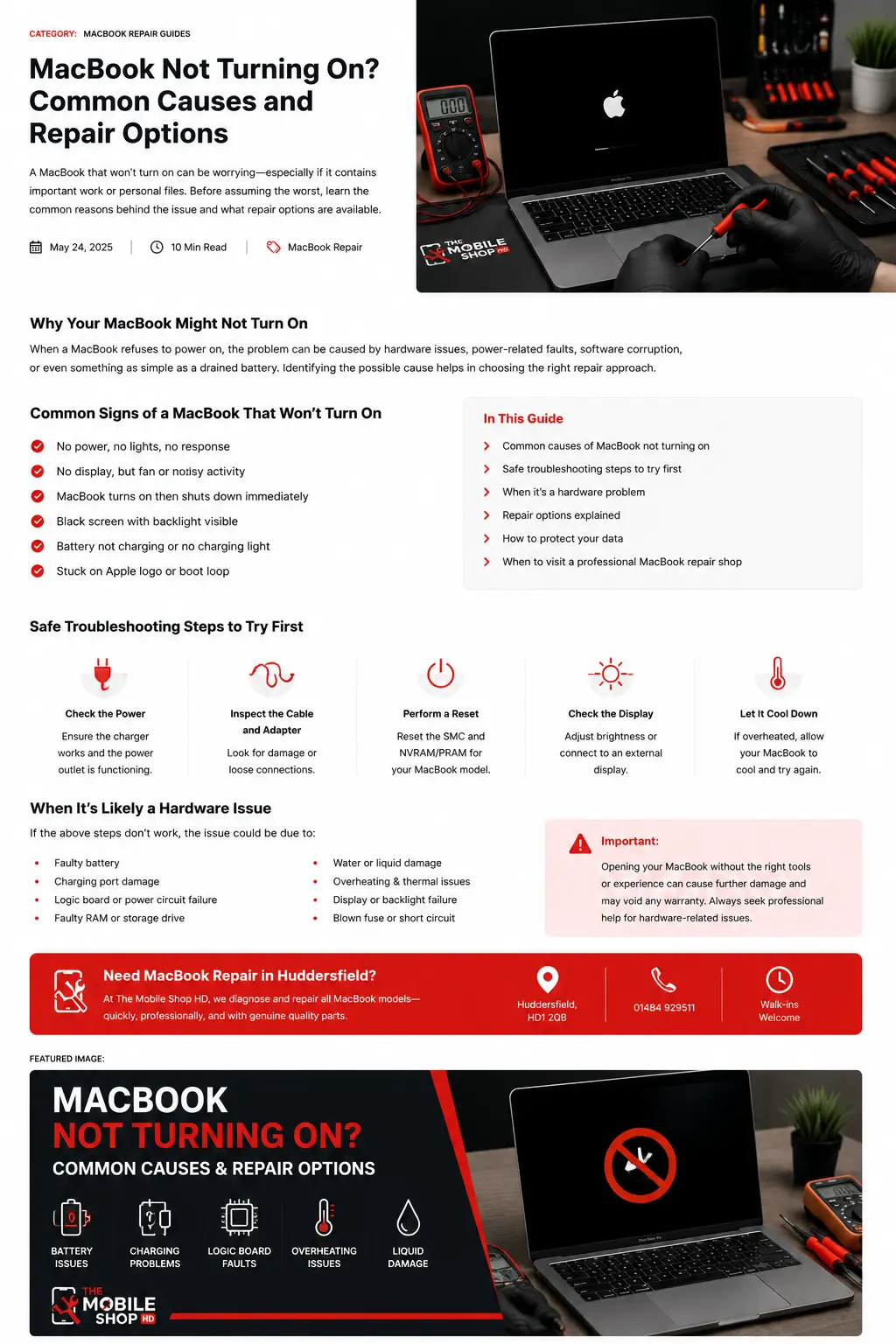
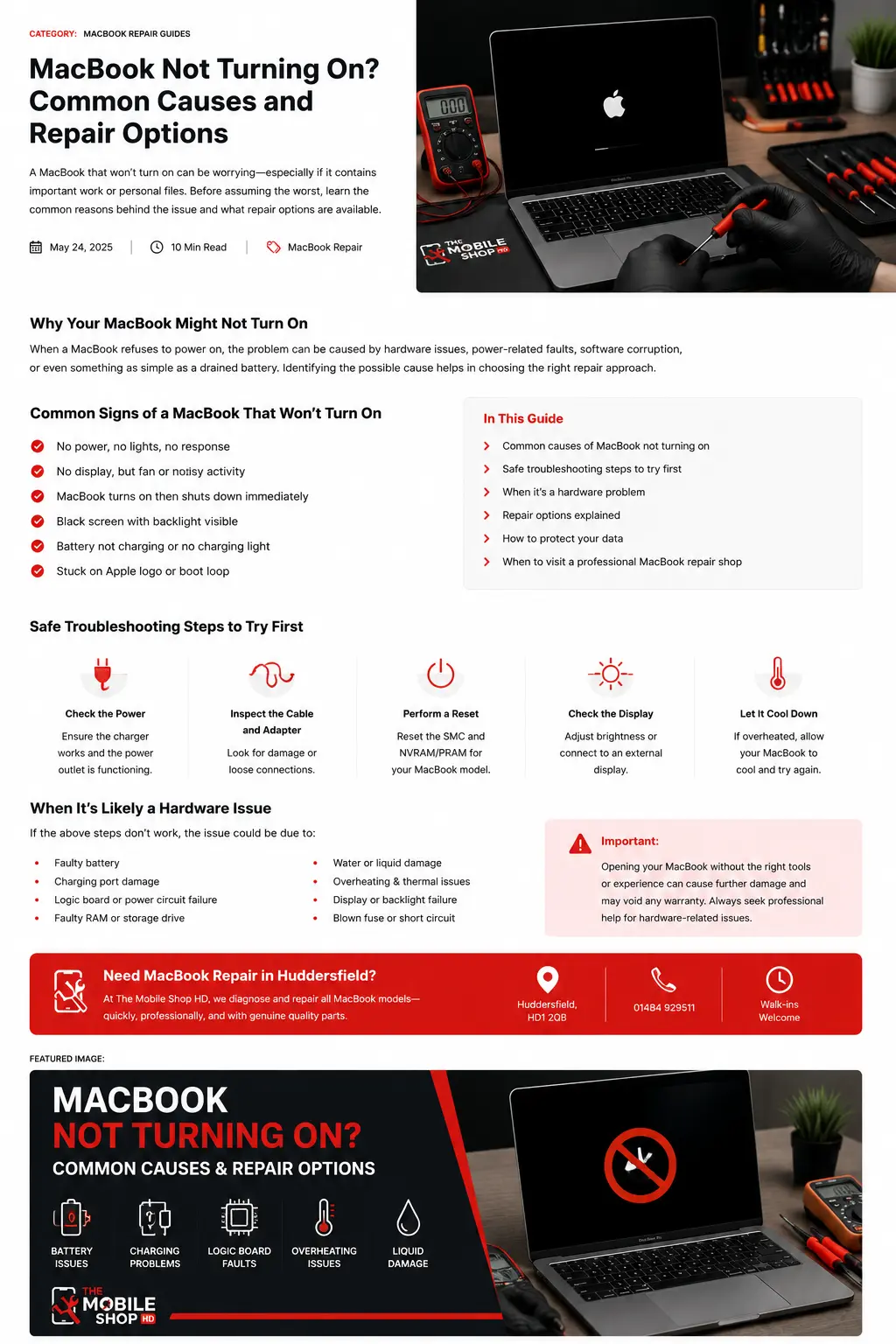
A MacBook that refuses to turn on can be worrying, particularly when it contains important work, university files, photographs or personal information.
Sometimes the cause is simple. The battery may be completely discharged, the charging cable may be damaged or the power socket may not be working. In other cases, the MacBook may actually be running while the screen remains black. More serious faults can involve the battery, charging port, display, storage, cooling system or logic board.
The safest approach is to identify the exact symptoms before attempting any repair. Opening the MacBook, forcing a charging connector or repeatedly trying random reset combinations can make the fault worse.
This guide explains the common reasons a MacBook may not turn on, the checks you can safely carry out and the signs that professional MacBook repair may be required.
Quick answer: Connect the MacBook to a reliable charger, test another power socket, leave it charging for at least 30 minutes, disconnect accessories and try a normal restart. Check for fan noise, keyboard lights, charging sounds or an image on an external display. Stop troubleshooting if the MacBook is swollen, overheating, liquid-damaged or producing a burning smell.
First, Identify What “Not Turning On” Means
A completely unresponsive MacBook is different from a MacBook that powers on but does not display an image.
Before troubleshooting, check whether you notice any of the following:
- A startup sound
- Fan movement
- Keyboard backlighting
- Trackpad feedback
- Charging sound
- Apple logo
- A dim image on the screen
- External-monitor output
- Caps Lock light
- Battery or charging symbol
- Repeated restarting
- A folder or error symbol
These signs can help narrow down the problem.
For example, if the fan runs and the keyboard lights appear but the display remains black, the problem may be related to the screen rather than the battery or power supply.
1. The Battery May Be Completely Discharged
A deeply discharged battery is one of the simplest reasons a MacBook may appear completely dead.
If the MacBook has not been used for several days or weeks, the battery may need time before the device shows any response.
Safe checks to try
- Connect the MacBook to a compatible charger.
- Make sure the charger is firmly connected.
- Try another wall socket.
- Leave the MacBook charging for at least 30 minutes.
- Press the power button once.
- Avoid repeatedly pressing the power button every few seconds.
A completely discharged battery may not display a charging symbol immediately.
When the battery may need replacement
The battery may require professional inspection if:
- The MacBook works only while connected to power
- The battery percentage does not increase
- The battery drains extremely quickly
- The MacBook switches off when unplugged
- The casing or trackpad begins lifting
- The battery status shows a service warning
- The device becomes unusually hot while charging
Battery performance naturally declines over time, but sudden charging failure can also involve the charger, charging port or internal power circuitry.
2. The Charger, Cable or Plug May Be Faulty
A MacBook cannot charge correctly if its charger or cable is damaged.
Depending on the model, your MacBook may use:
- MagSafe
- USB-C
- A newer MagSafe charging cable connected to a USB-C adapter
Inspect the charging equipment
Check for:
- Frayed cable insulation
- Bent connectors
- Burn marks
- Loose plugs
- Damaged pins
- A charger that becomes excessively hot
- Charging that starts and stops when the cable moves
Try another compatible charger where possible.
The replacement charger must provide suitable power for your MacBook model. A low-powered USB-C adapter may charge very slowly or fail to support the MacBook properly during use.
Signs of a charging-port problem
The port may need repair if:
- The cable feels loose
- Charging works only at a certain angle
- The connector repeatedly disconnects
- The port is visibly bent or damaged
- The MacBook was dropped while connected
- There is corrosion or liquid residue
- Multiple compatible chargers fail
Do not force a connector into a damaged port.
3. The MacBook May Be On, but the Screen Is Black
A black display does not always mean the whole MacBook has failed.
The device may be running while the screen, backlight or display cable is faulty.
Check for signs of power
Look and listen for:
- Fan noise
- Keyboard backlight
- Notification sounds
- Trackpad movement or feedback
- Caps Lock light
- Charging sound
- External-monitor output
Safe display checks
- Increase the screen brightness.
- Disconnect external displays and adapters.
- Close and reopen the lid carefully.
- Restart the MacBook.
- Connect a compatible external monitor if available.
- Shine a light gently across the screen to check for a very faint image.
A faint image may suggest a backlight problem.
Possible display-related causes
- Failed screen panel
- Damaged display cable
- Backlight failure
- Hinge-related cable damage
- Graphics problem
- Liquid damage near the screen
- Impact damage
Do not repeatedly bend the display or press the screen. A damaged hinge or cable can worsen with movement.
4. The MacBook May Be Frozen
Sometimes macOS becomes unresponsive and the MacBook appears to be off even though it is stuck in a software state.
Try a normal power cycle
Press and hold the power button for approximately ten seconds, then release it.
Wait a few seconds and press the power button normally.
This may force the MacBook to shut down and restart.
A forced shutdown should not normally erase stored files, but any unsaved work may be lost.
If the problem happens repeatedly, the cause may involve:
- A failed update
- Software corruption
- A problematic app
- Low storage
- Storage failure
- Memory or logic-board issues
5. A Connected Accessory May Be Preventing Startup
External devices can sometimes interfere with startup.
Disconnect:
- USB drives
- External hard drives
- Hubs
- Docks
- Memory cards
- External monitors
- Audio devices
- Third-party chargers
- USB accessories
After disconnecting everything except power, try starting the MacBook again.
If it starts normally, reconnect the accessories one at a time to identify the possible cause.
6. The MacBook May Be Overheating
A MacBook may shut down automatically when internal temperatures become unsafe.
Common signs include:
- The casing becomes extremely hot
- The fan runs constantly
- Performance slows before shutdown
- The MacBook switches off during demanding tasks
- A temperature warning appears
- The fan makes grinding or scraping noises
- The MacBook restarts after cooling down
Safe checks to try
- Move the MacBook to a hard, flat surface
- Remove anything blocking the ventilation area
- Close demanding applications
- Allow the device to cool naturally
- Keep it away from direct sunlight
- Disconnect unnecessary accessories
Do not place the MacBook in a fridge or freezer.
Sudden temperature changes may create condensation inside the device.
When repair is needed
Professional inspection is recommended when overheating continues after basic checks.
Possible causes include:
- Dust buildup
- Fan failure
- Cooling-system problem
- Battery fault
- Internal component failure
- Logic-board issue
7. The MacBook May Have Liquid Damage
Liquid exposure can cause immediate failure or problems that appear days later.
Even a small amount of water, coffee or another drink can affect:
- Keyboard
- Trackpad
- Charging ports
- Battery
- Display
- Logic board
- Internal connectors
What to do after liquid exposure
- Disconnect the charger.
- Switch the MacBook off if it is safe to do so.
- Remove connected accessories.
- Wipe the outside with a soft, dry cloth.
- Keep the MacBook in a dry, ventilated place.
- Arrange a professional inspection as soon as possible.
What not to do
Do not:
- Continue charging it
- Use a hairdryer
- Place it on a radiator
- Put it in rice
- Shake it aggressively
- Keep trying to power it on
- Open it without suitable experience
A MacBook may start after drying while corrosion continues internally. Early inspection can reduce the risk of further damage.
8. The Battery May Be Swollen
A swollen battery is a safety concern.
Possible warning signs include:
- The trackpad is lifting
- The keyboard appears raised
- The bottom casing is separating
- The MacBook no longer sits flat
- The lid does not close normally
- The casing feels distorted
- The device becomes unusually hot
Do not press the casing back into place.
Do not continue charging or using the MacBook.
Switch it off if you can do so safely and arrange professional battery replacement.
9. macOS May Be Failing to Start
A MacBook may receive power but fail during the startup process.
Common symptoms include:
- Apple logo with no progress
- Progress bar that never finishes
- Restart loop
- Question-mark folder
- Prohibited symbol
- Recovery screen
- Repeated error messages
- Login screen followed by a crash
Possible causes include:
- Failed macOS update
- Corrupted system files
- Storage problem
- Incorrect startup disk
- File-system damage
- Internal hardware fault
Safe checks to try
If the MacBook reaches recovery options, you may be able to:
- Run Disk Utility
- Check the startup disk
- Use Safe Mode
- Reinstall macOS
- Restore from backup
The exact process differs between Intel-based and Apple-silicon MacBooks.
Before erasing or reinstalling anything, make sure you understand whether your files are backed up.
A software reset will not repair a failed battery, display, charging port or logic board.
10. The Storage Drive May Be Failing
Storage faults can prevent a MacBook from starting correctly.
Possible warning signs include:
- Question-mark folder
- Files disappearing
- Frequent crashes
- Slow startup
- Clicking noises on older models with mechanical drives
- Disk errors
- macOS unable to find the startup disk
- Repeated freezing
Modern MacBooks often use storage integrated with the logic board, which can make data recovery more difficult.
If the MacBook starts intermittently, back up important files immediately.
Avoid repeatedly forcing restarts when the storage system is showing serious errors.
11. The Logic Board or Power Circuit May Be Faulty
The logic board controls many essential MacBook functions.
A logic-board fault may cause:
- No power
- No charging
- No display
- Random shutdowns
- USB-C ports not working
- Fans running at full speed
- Repeated restart loops
- Failure after liquid damage
- Failure after a power surge
Logic-board repair requires proper diagnosis. Replacing parts without identifying the cause can waste money and may not solve the problem.
A professional technician may need to test:
- Power rails
- Charging circuit
- USB-C controller
- Battery connection
- Display circuit
- Corrosion
- Damaged components
12. The Keyboard or Power Button May Be Faulty
On many MacBooks, the power button is integrated with Touch ID.
If the button or related connection is damaged, the MacBook may not respond normally.
Possible causes include:
- Liquid damage
- Physical impact
- Keyboard failure
- Internal cable fault
- Touch ID assembly damage
However, a faulty power button is not the only possible reason for no response. The charging system and logic board should also be checked.
Safe MacBook Checks You Can Try
Before visiting a repair shop, try these simple steps:
- Test another wall socket.
- Inspect the charger and cable.
- Leave the MacBook charging for at least 30 minutes.
- Disconnect all accessories.
- Hold the power button for around ten seconds.
- Try a normal restart.
- Check for sounds, lights or fan movement.
- Increase the brightness.
- Test an external display where suitable.
- Allow an overheated MacBook to cool naturally.
Stop if you notice:
- Swelling
- Burning smell
- Smoke
- Severe overheating
- Liquid inside the ports
- Sparks
- A badly damaged charging connector
MacBook Repair Options
The correct repair depends on the diagnosis.
Battery Replacement
Battery replacement may be required when the MacBook:
- Does not hold charge
- Switches off when unplugged
- Shows a battery-service warning
- Has a swollen battery
- Charges extremely slowly
- Has poor battery runtime
Charger or Charging-Port Repair
Charging problems may involve:
- Damaged charger
- Frayed cable
- MagSafe fault
- USB-C port damage
- Internal charging circuit
- Corrosion
The charger should be tested before replacing internal components.
Screen Repair
Screen repair may be required when:
- The display is black but the MacBook runs
- Lines or flickering appear
- The screen is cracked
- The backlight fails
- The picture changes when the lid moves
- Liquid has entered the display
Cooling-System Repair
Persistent overheating may require:
- Internal cleaning
- Fan replacement
- Thermal maintenance
- Ventilation repair
- Logic-board diagnosis
Logic-Board Repair
Logic-board repair may be considered when the MacBook has:
- No power
- Liquid damage
- Charging-circuit failure
- USB-C controller fault
- Internal short circuit
- Power-surge damage
The repairability depends on the model, damage and availability of parts.
macOS or Storage Repair
Software and storage services may include:
- macOS repair
- Startup-disk diagnosis
- Data backup
- Storage replacement on compatible models
- Recovery troubleshooting
- Reinstallation of macOS
Protecting Your Data Before Repair
If the MacBook still starts, create a backup before repair.
You can use:
- Time Machine
- External storage
- iCloud Drive
- Another trusted cloud service
- Manual file transfer
Back up:
- Work documents
- Photographs
- Videos
- University files
- Browser bookmarks
- Passwords
- Emails
- Accounting or business records
Confirm that the backup is complete and accessible.
If the MacBook does not turn on
Data recovery may still be possible, depending on:
- The MacBook model
- Storage condition
- Logic-board damage
- Liquid corrosion
- Whether the storage is removable
- Whether FileVault encryption is enabled
Recovery cannot be guaranteed.
What to Tell the Repair Technician
Provide as much relevant information as possible:
- MacBook model
- Approximate year
- Main symptoms
- When the fault started
- Whether it was dropped
- Whether liquid was involved
- Whether the charger has been tested
- Whether the battery was previously replaced
- Any error symbols
- Whether the MacBook makes sounds or shows lights
- Previous repair attempts
- Whether the data is backed up
Clear information helps the technician diagnose the fault more efficiently.
Should You Repair or Replace the MacBook?
Repair may be worthwhile when:
- The MacBook still meets your needs
- The fault involves the battery, screen or charging system
- The casing is in good condition
- Important files are stored on the device
- Replacement would cost considerably more
- The MacBook supports the software you use
Replacement may be more practical when:
- Several expensive components have failed
- There is severe liquid corrosion
- The logic board and display are both damaged
- The repair cost approaches the cost of a suitable replacement
- The MacBook no longer supports required software
- Performance no longer meets your needs
A professional diagnosis helps you compare repair and replacement properly.
Need MacBook Repair in Huddersfield?
The Mobile Shop HD provides MacBook and laptop repair support in Huddersfield.
Faults that may require inspection include:
- MacBook not turning on
- MacBook not charging
- Black screen
- Battery problems
- Damaged charging ports
- Overheating
- Liquid damage
- Startup errors
- Keyboard or trackpad faults
- Logic-board problems
Website: https://mobileshophd.com/
Telephone: 01484 929511
Location: Huddersfield, HD1 2QB
When contacting the shop, provide the MacBook model, fault symptoms and details of any drop, overheating or liquid exposure.
The cause may be a completely discharged battery, faulty charger, damaged charging port, black-screen fault, macOS problem, storage failure or logic-board issue.
Leave it connected to a suitable charger for at least 30 minutes before trying to power it on.
The display, backlight, display cable or graphics circuit may be faulty. Test brightness settings and an external monitor before arranging repair.
Sometimes, but the outcome depends on the liquid, affected components, corrosion and how quickly the device is inspected.
No. Rice does not remove internal moisture or corrosion. Disconnect power and arrange professional inspection.
The battery may be heavily degraded, disconnected or faulty. The charging and power circuits may also need testing.
Yes, depending on the model and damage. Stop using and charging the MacBook until the battery has been inspected.
It may be possible, but recovery depends on the model and condition of the storage and logic board. Recovery is not guaranteed.
Only after backing up your data and confirming that the fault is software-related. Reinstalling macOS will not repair hardware damage.
No power, no charging, repeated shutdowns, failed USB-C ports and liquid-damage symptoms may indicate a logic-board fault, but proper testing is required.
It depends on the model, condition, repair cost and whether it still supports the software you need.